Here's some general information on entering a model's public chat room:
Once you've selected a model you'd like to view, you'll enter their public chat room where you can participate, have a good time, and get to know your model better.
Generally, the interfaces are very similar except for a few key differences:
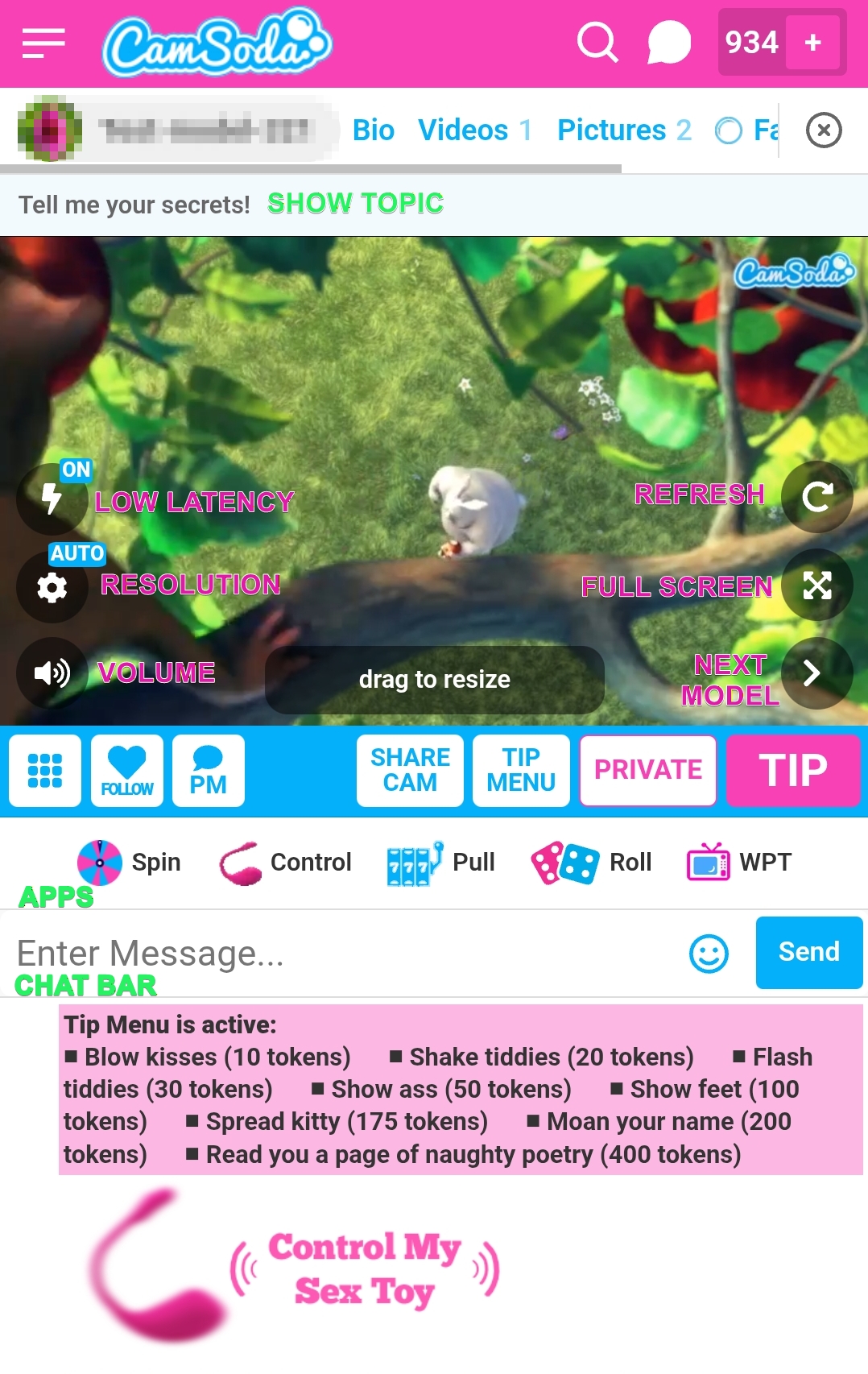
- Via mobile
- the layout is vertical by default.
- the chat appears below the stream window and new activity or posts display at the top of the chat feed.
- While in full-screen mobile mode, the chat will display on the bottom of the stream window, with new activity or posts displayed on the bottom of the chat feed area.
- if there is a room topic or subject, it is above the model's stream window.
- you are immediately greeted by the broadcast window, and you may tap the Bio, Pictures, or Videos links to view information and available media in the model's profile, or tap any of the listed social pages or fanclub.
- Via desktop
- the layout is horizontal by default
- the chat appears to the right of the model's stream and new activity or posts will display at the bottom of the chat
- if there is a room topic or subject, it is above the model's chat feed
Please see the images/topics below to familiarize yourself with the general layout of rooms and features.
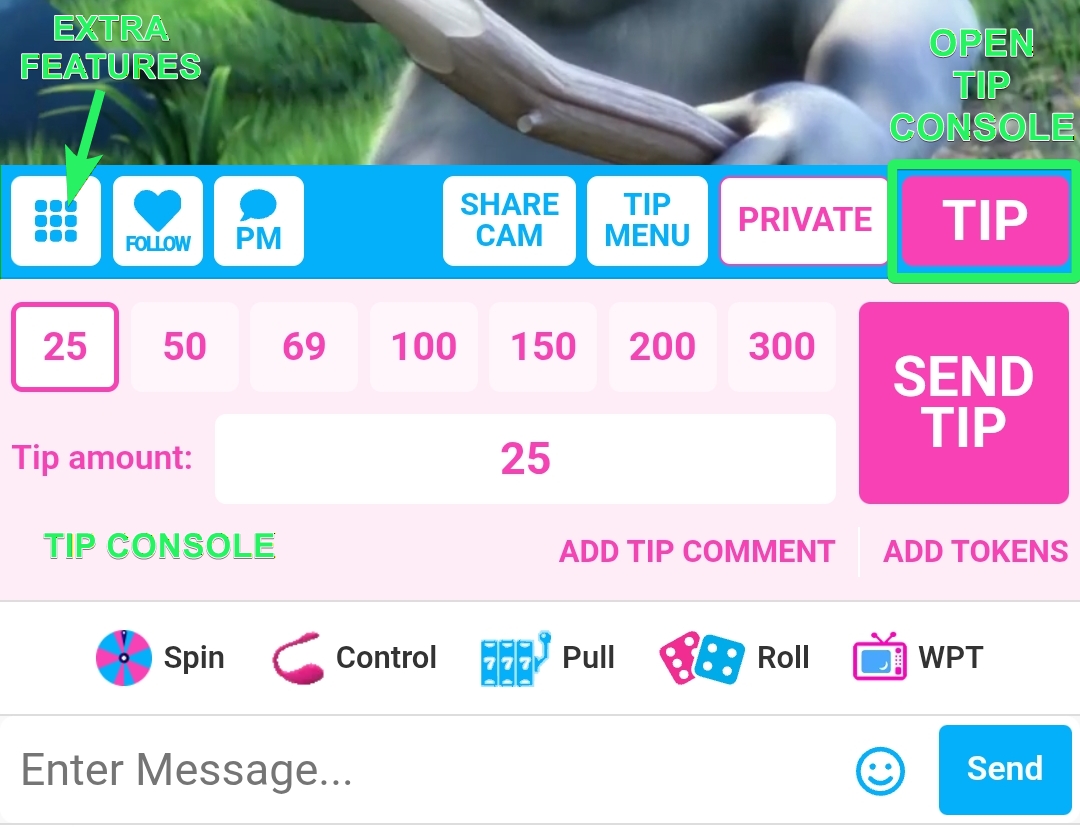
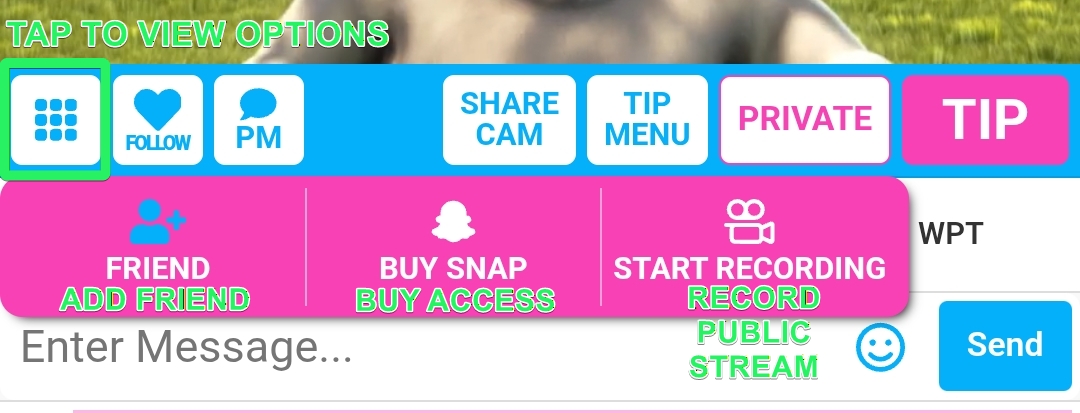
What are the "extra features" mentioned in the image?
Tapping on the button that looks like a grid of boxes will display additional/optional features such as Add Friend, Buy Snap (Snapchat), and Start Recording (if the model allows Public Recordings). You may also see an option to purchase access to a model's Fansoda page if they have one set up.
Please see the following articles for more information on the highlighted subjects:
Games & Add-ons (chat room apps)
How do I resize the model's stream on my device?
- Via mobile, the broadcast can be resized by holding a finger on the drag to resize button on the bottom of the stream window, or you may tap the corresponding symbol on the broadcast window to enter full screen mode. The chat will appear over the broadcast but remain transparent enough to enjoy the experience, or you can hide the chat entirely by tapping the Hide Chat button.
- Via desktop, you can drag to resize by tapping the resize widget located on the righthand side of the stream window, expand the stream window within your browser or enter full screen mode by tapping the associated symbol. Full screen appears as a hollow square icon.
What is the room topic or goal?
If a model has a room topic or goal posted, you may see a white bar at the top of the stream or chat window. It can be expanded for further information.
I think I'd like to find a different model chat room, is there an easier way to do that without searching again?
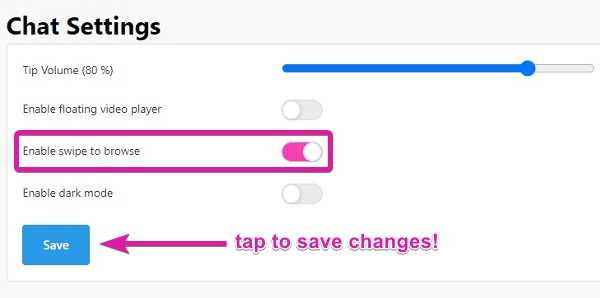
Yes, there is an easy solution. With CamSoda's Swipe feature activated, simply swipe left or right on your mobile device, or tap the left or right arrow on your desktop device, to enter a random model's room. Navigate to Settings > Settings & Privacy and scroll to Chat Settings to activate the toggle.